Contents
Table of Contents
Introducing ESM
Installing ESM
Preparing Data for ESM
Using the ESM
Using other options on the ESM menu
Introducing ESM
The ESM software can used to analyze systems of equation models such as:
- Simple equation differential modeling
- Pannel data models
- Dummy variable models, etc.
ESM is simple to install and configure. A basic installation can be done within minutes by running the setup file and using default options.
To install ESM:
- Open the installation disk/folder
- Double-click the EsmLabSetup.exe file
- Following the instructions
- Click Finish to complete the installation.
After installing ESM, on Windows Vista or Windows 7, you may have to run it as an administrator, by right-clicking the icon and selecting Run as Administrator; or configure ESM to automatically run as administrator by right-clicking the icon and selecting properties, and checking run this program as administer from the compatibility tab, to automatically run in administrator mode. For more information on this issue see your windows help.
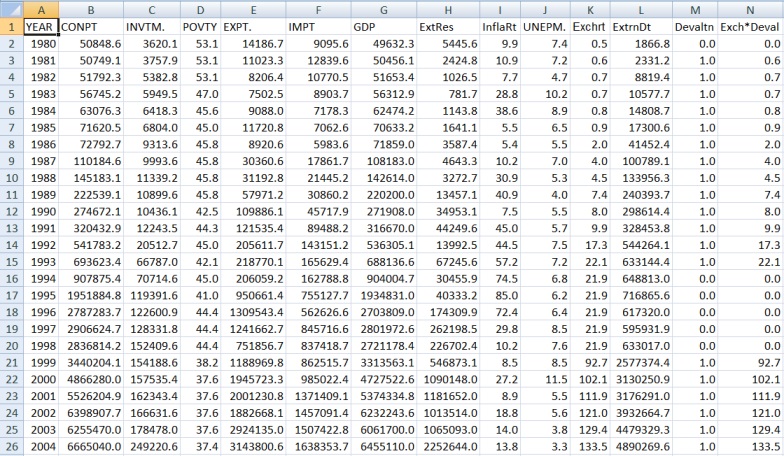
ESM is a data analysis / modeling tool. Therefore data must first be prepared according to certain specification before using ESM. Once one is clear on the model and has been able to specify variables, the next step is to classify the variables into endogenous and exogenous variables.
Figure 1: Below is a sample data showing data on devaluation effects on selected national variables. Such data can be prepared using Excel and stored as an Excel file or CSV file as input to ESM for modeling or analysis.
Using the ESM
Step 1: Open ESM-LAB from the Windows Start menu or Desktop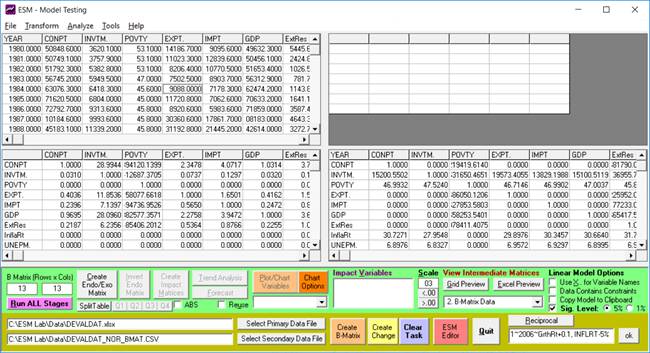
Figure 2: Showing ESM with its for views, with primary data on view 1, and B/A matrix on views 3 and 4.
Step 2: Click [Clear Task] button to clear the screen to begin a new project
Step 3: Click [Select Primary Data File] button to find and load a primary data file (in Excel or CSV format).
Step 4: Click [Create B-Matrix] button to create the B matrix. The A matrix is automatically created too. (Figure 2)
Step 5: Click [Create Endo/Exo Matrix] button to specify the size/number of the endogenous variables, and separate it from the exogenous variables.
Step 6: Click [Invert Endo Matrix] to create an inverse of endogenous data.
Step 7: Click [Create Impact Matrices] button to create impact matrices.
Step 8: Click [Trend Analysis] button to analyze the data and create chart data.
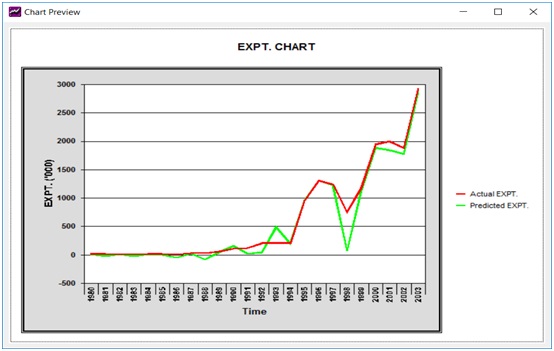
Step 9: Use chart options to edit the chart title and other options, and click [Plot/Chart] button to re-plot chart.
- To copy a chart image into word, use snipping tool to capture the screen or press Alt-PrintScreen button.
- To copy only the chart data to Word or Excel simply press Ctrl-V immediately after generating the chart.
Use the [<.00] [>.00] buttons to adjust the number decimal places
To know the data being displayed in any of the four ESM views, simple point/rest the mouse pointer on the view.
To export the data in an ESM view to Excel, click on the View and press Enter key.
Use the [Impact Variables] list to select one or more impact of a particular variable or group of variables on an endogenous variable.
The list of Intermediate Matrices contains a list various matrices created during the analysis of a particular project. To view any of the matrices, select the matrix title from the list and click [Grid Preview] to display it the forth View of ESM or click [Excel Preview] to display the matrix Excel.
There are also working tools on the menu of ESM for performing various operations:
- Regression
- Matrix operations
- Transformations, etc.